Door Groups
Location: Main Menu → Access Control → Door Groups
Overview
Door Groups allow administrators to organize multiple doors into a single logical group. Once grouped, these doors can be managed together for access permissions, schedules, monitoring, and commands. Door Groups are commonly used when multiple doors share the same access requirements. For example:
•All Main Entrance doors
•Employee-only doors
•Warehouse access doors
•Office area doors
By grouping doors together, administrators can simplify system configuration. Instead of assigning permissions to each door individually, the group can be used when creating Access Levels, Threat Levels, or Commands. Door Groups are also used throughout the Drawbridge system for:
•Access Levels
•Command Door Groups
•Threat Level restrictions
•Visual Verification filtering
Viewing Door Groups
The Door Groups page will display all existing door groups in the current partition.
•Search box – Quickly locate a specific door group.
•Sortable columns – Click column headers to change the sorting order.
•Create New – Create a new Door Group.
•Edit – Click an existing Door Group to modify it.
Creating a Door Group
1.Navigate to Main Menu → Access Control → Door Groups.
2.Click Create New.
Name - Name of the Door Group.
Description - Enter a short description explaining the purpose of the door group.
Adding Doors to the Group
1.Select the Doors tab.
2.Click Add.
3.Select the doors you want to include in the group.
4.Click OK.
After entering all information and selecting doors, click Save.
Editing a Door Group
1.Navigate to Main Menu → Access Control → Door Groups.
2.Click the Door Group name you want to modify.
3.Update the Name, Description, or Doors list as needed.
4.Click Save.
Viewing Door Group History
Each Door Group maintains an audit history of changes.
To view the history:
1.Open the desired Door Group.
2.Select the History tab.
The history log includes:
•Configuration changes
•User actions
•Date and time of modifications
This audit information can assist with troubleshooting or tracking configuration changes.
Command Door Groups
Location: Main Menu > Monitor/Command > Command Door Groups
The Command Door Groups page allows you to manually command all doors within a selected Door Group at one time.
This is commonly used for emergency lockdowns, special events, or temporary manual control of multiple doors.
Overview
A Door Group is a collection of doors grouped together for easier management.
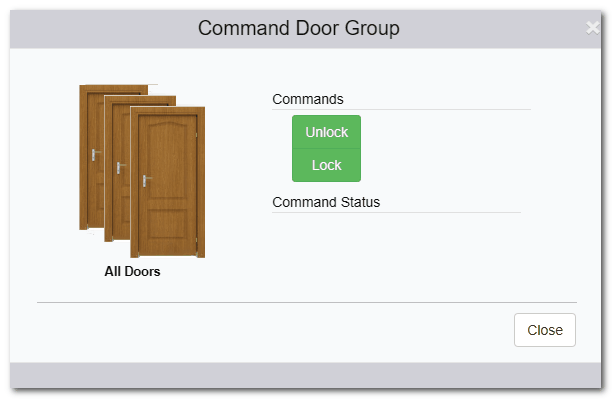
The Command Door Groups feature allows you to:
•Lock all doors in a group
•Unlock all doors in a group
The command is applied immediately to every door in the selected group.
Commanding a Door Group
To manually command a group of doors:
•Click the name of the desired Door Group.
•The Command Door Group page will open.
•Select one of the available commands:
oUnlock
oLock
•Confirm the action (if prompted).
The selected command will be sent immediately to all doors in that group.
When to Use Command Door Groups
Common scenarios include:
•Locking down a building during a security event
•Unlocking multiple entry points for a special event
•Temporarily overriding normal schedules
•Restoring doors after an emergency
Important Considerations
•Manual commands may override scheduled behavior temporarily.
•If a Scheduled Command is active, the next scheduled event may change the door state again.
•Active Threat Levels may affect how doors respond to manual commands.
•User permissions (Roles) determine who can issue door commands.